Kategorien
Allgemein CSS

SVG

The implementation in CSS or with an collection of SVGs in a sprite file

Implementation in CSS

1. We create a ::before Element with background-color

 &__item::before{
        content: "";
        display: inline-block;
        height:1rem;
        width: 1rem;
        fill: var(--color-primary);

        background-color: var(--color-primary);   
    }
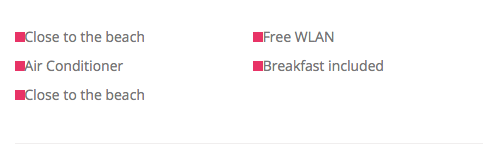
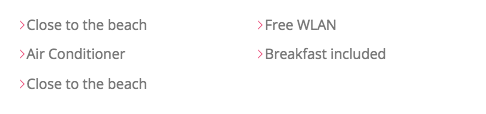
2. We mask the SVG, so only the SVG will appear in the background-color

&__item::before{
        content: "";
        display: inline-block;
        height:1rem;
        width: 1rem;
        fill: var(--color-primary);

        background-color: var(--color-primary);  
        
        //Newer Browser
        // -webkit-mask-image: url(../img/chevron-thin-right.svg);
        // -webkit-mask-size: cover;
        // mask-size: cover;

        //Older Browsers
        // background-image: url(../img/chevron-thin-right.svg);
        // background-size: cover;
    }
////////////////////////
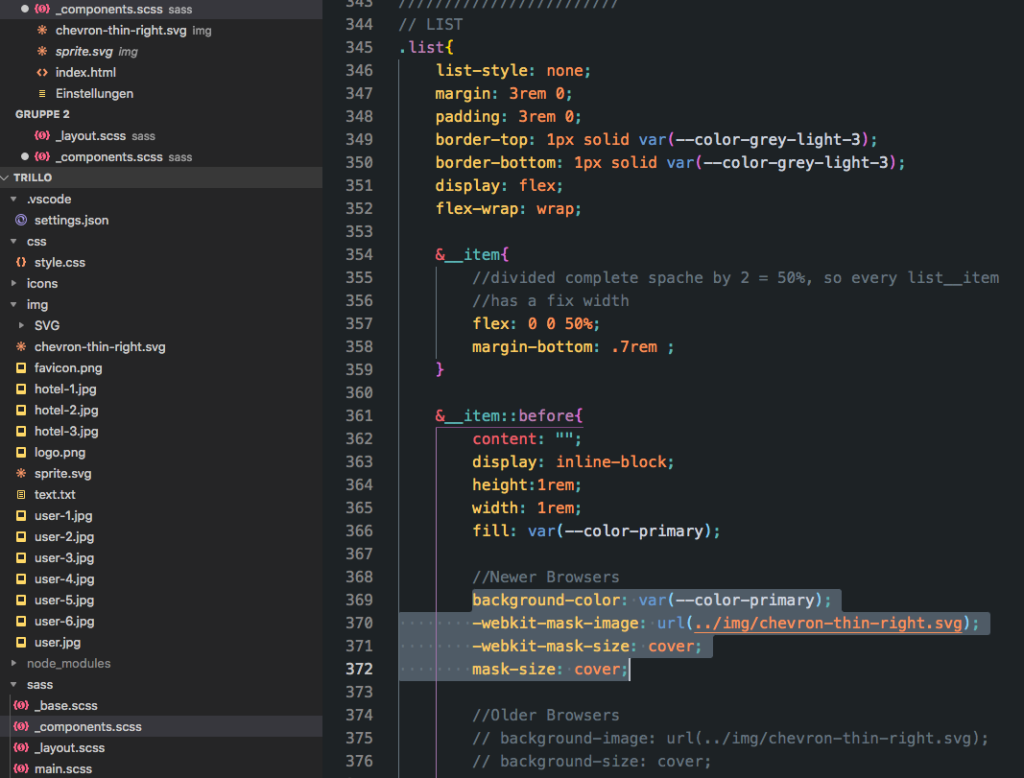
// LIST
.list{
    list-style: none;
    margin: 3rem 0;
    padding: 3rem 0;
    border-top: 1px solid var(--color-grey-light-3);
    border-bottom: 1px solid var(--color-grey-light-3);

    display: flex;
    flex-wrap: wrap;

    &__item{
        //divided complete space by 2 = 50%, so every list__item
        //has a fix width
        flex: 0 0 50%;
        margin-bottom: .7rem ;
    }

    &__item::before{
        content: "";
        display: inline-block;
        height:1rem;
        width: 1rem;
        fill: var(--color-primary);

        //Newer Browsers
        background-color: var(--color-primary);
        -webkit-mask-image: url(../img/chevron-thin-right.svg);
        -webkit-mask-size: cover;
        mask-size: cover;

        //Older Browsers
        // background-image: url(../img/chevron-thin-right.svg);
        // background-size: cover;

       
    }

}

Implementation as Sprite file

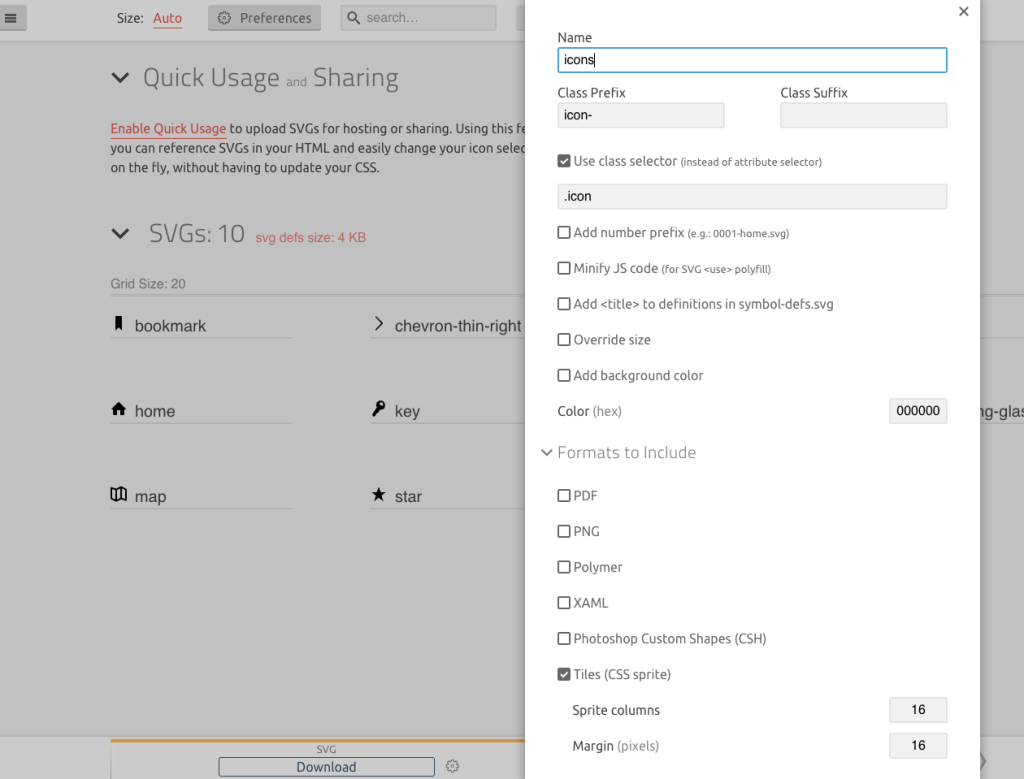
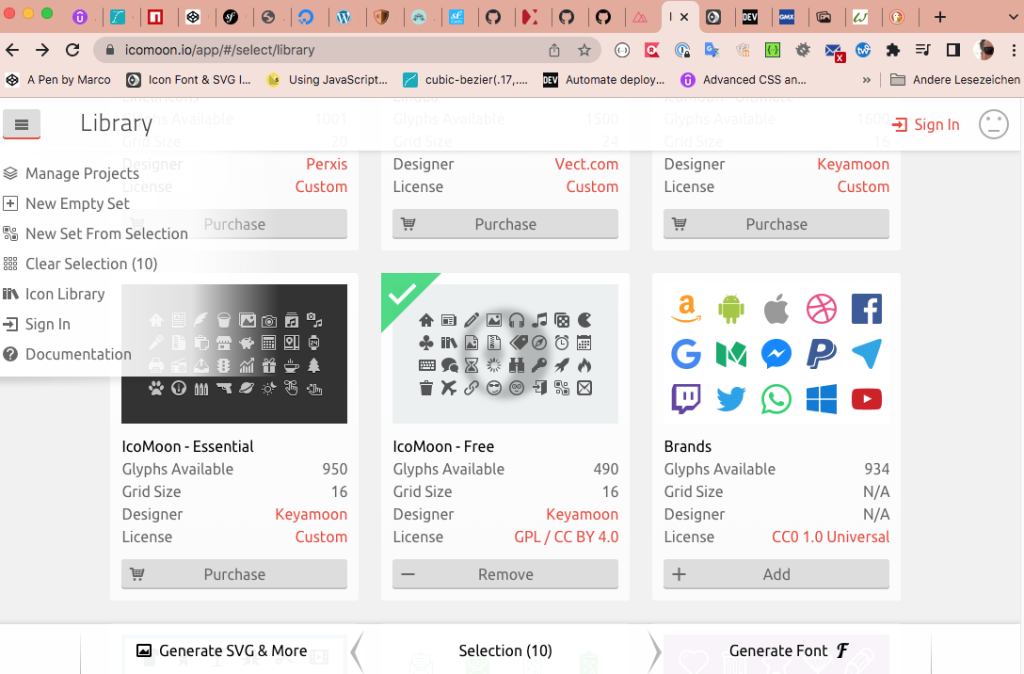
Create a sprite file with icomoon.io and export it as sprite file.
1. Create svg Element in html document

       <div class="overview__stars">
            <svg class="overview__icon-star">
              <use xlink:href="img/sprite.svg#icon-star"></use>
            </svg>
            <svg class="overview__icon-star">
              <use xlink:href="img/sprite.svg#icon-star"></use>
            </svg>
            <svg class="overview__icon-star">
              <use xlink:href="img/sprite.svg#icon-star"></use>
            </svg>
            <svg class="overview__icon-star">
              <use xlink:href="img/sprite.svg#icon-star"></use>
            </svg>
            <svg class="overview__icon-star">
              <use xlink:href="img/sprite.svg#icon-star"></use>
            </svg>
        </div>

2. Set Element size and fill with color

    &__icon-star{
        width: 1.75rem;
        height: 1.75rem;
        fill: var(--color-primary);
    }

3. All 5 SVG Elements filled with color

Kategorien
Allgemein CSS FlexBox

Flex-Box Tricks

display:flex instead inline-block

To use the exact size of element you can use better display:flex instead inline-block.
Standard inline-block, in this case we have some space under the element
display:flex, only use element size

Use margin-right:auto sometines helpfully instead using justify-content

Next Example, here margin:auto pushed all the way to the right side. If we are using display:flex and justify-content in parent element you can do same things, but sometimes wie have more elements and then space-arounding, space-between doesnt help for exactly positioning.

Kategorien
CSS FlexBox

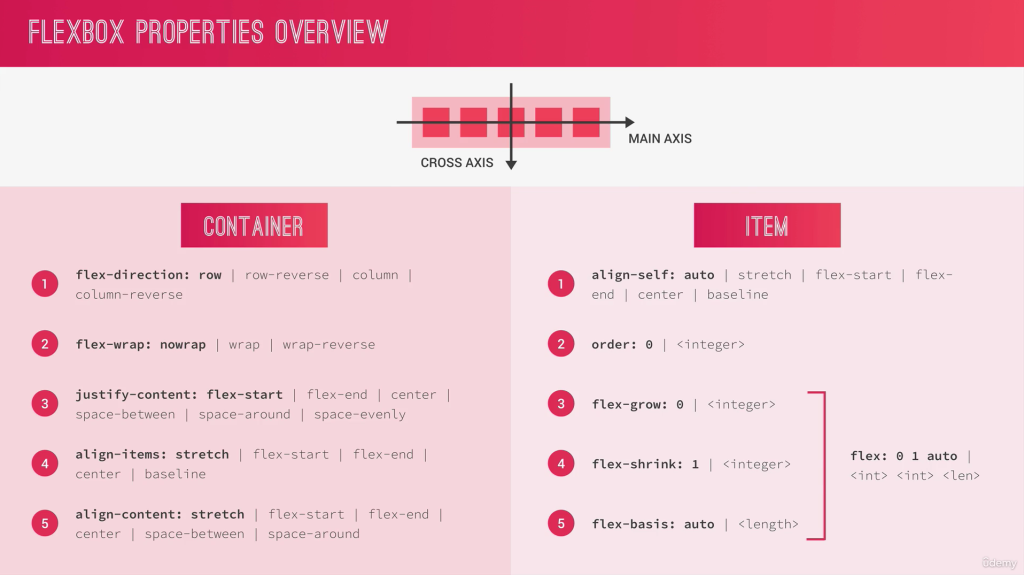
Flex-Box

Container Properties

Main-Axis: set the direction of elements
Cross-Axis: set the position of elements

Flex-Container

Direction

display: flex
flex-direction: row (x axis from left to right)
flex-direction: row-reverse (skip direction on x axis from right to left)
flex-direction: column;

Container Elements on X-Axis

//Justify Elements in Container
justify-content: center;
center in Container
flex-start
flex-end

Spaces between the same

Same Space between Elements no space on left/right conter border

//Justify Elements in Container
justify-content: space-between

Spaces around 1 and double Size inside

Doubles Spaces between inside Elements

//Justify Elements in Container
justify-content: space-around

Spaces overall equal

//Justify Elements in Container
justify-content: space-evenly

Container Elements on Y-Axis

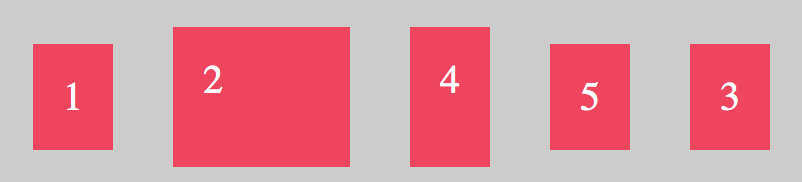
Centering on Y-Axis on the biggest Element here Number 2,

align-items: center
All Elements centered
align-items: flex-start
All Elements are at the beginning Y-Axis with flex-start
align-items: flex-end
All Elements are at the end of Y-axis with flex-end
align-items: stretch
All Element wiil stretch
align-items: baseline
All Elements will along the „basline – TextLine“ orientated. Imagine this yellow Line.

With flex-direction „column“, the Main-Axis and Cross-Axis will changed

flex-direction: column;
align-items: center;

With „column“ the Main-Axis is no longer X, now its Y-Axis. Main Axis now from top to bottom (flex-direction:column) and with the positioning will orientated on Cross Axis (align-items.

flex-direction: column;  //Main-Axis Y from top to bottom
align-items: flex-start; //Cross-Axis X beginning of X Axis
flex-direction: column;  //Main-Axis Y from top to bottom
align-items: flex-end; //Cross-Axis X at the end of X Axis

Flex-Items

Property align-self (flex-item) will override the positioning of property align-items (flex-container)

//flex-container
flex-direction: row
align-items: center

//flex-item
.item4{
align-self: flex-end   // only this element will set at end
}

.item2{
height: 130px;   
}

//flex-item
.item4{
align-self: stretch   // only this element will stretched
}

.item2{
height: 130px;   
}

Order Elements

All Elements has initially order number 0

.item4{
align-self: flex-end;
order: -1;
}
Item 4 now hightest order number

Flex-Grow

Flex-Grow all Elements

That lets grow all elements grow up to maximum

<div class="container">
  <div class="item">1</div>
  <div class="item i2">2</div>
  <div class="item">3</div>
  <div class="item i4">4</div>
  <div class="item">5</div>

</div>
.item{
  background-color: #f1425b;
  padding: 30px;
  margin: 30px;
  font-size:40px;
  color: #fff;
  flex-grow: 1;
}

Flex-Grow Single Element

Double Size

//double size of item
.item2{
flex-grow: 2;
}
//tripe size of item
.item2{
flex-grow: 3;
}

Tipp: You can also write flex: 3 instead flex-grow: 3

Example only Single Element with flex-grow

.item{
  background-color: #f1425b;
  padding: 30px;
  margin: 30px;
  font-size:40px;
  color: #fff;
 // flex-grow: 1;    //or flex: 1 the same
}
.item3{
 flex: 1
}
remember flex-grow takes all the space it can grow up, only element 3 has flex-grow property

Flex-Basis

.item{
  background-color: #f1425b;
  padding: 30px;
  margin: 30px;
  font-size:40px;
  color: #fff;
 // flex-grow: 1;    //or flex: 1 the same
}
.item2{
 flex-basis: 20%;   //or in px
}
.item3{
 flex: 1;
}

Flex-Shrink

With Shrink you can prevented that elements will shrink.
Element 3 has flex-grow so that has ever the full maximum of space, and element 2 has 300px. If i resize window/browser window, the size of element 2 stay fix.

.item3{
 flex: 1;
}

.item2{
 flex-basis: 300px;   //or in %
 flex-shrink: 0;    //dont shrink element

 //alternative like obove  
 flex: 0 0 300px    
 // 0 (dont growup) 0 (dont shrink) 300px (flex-basis)
}

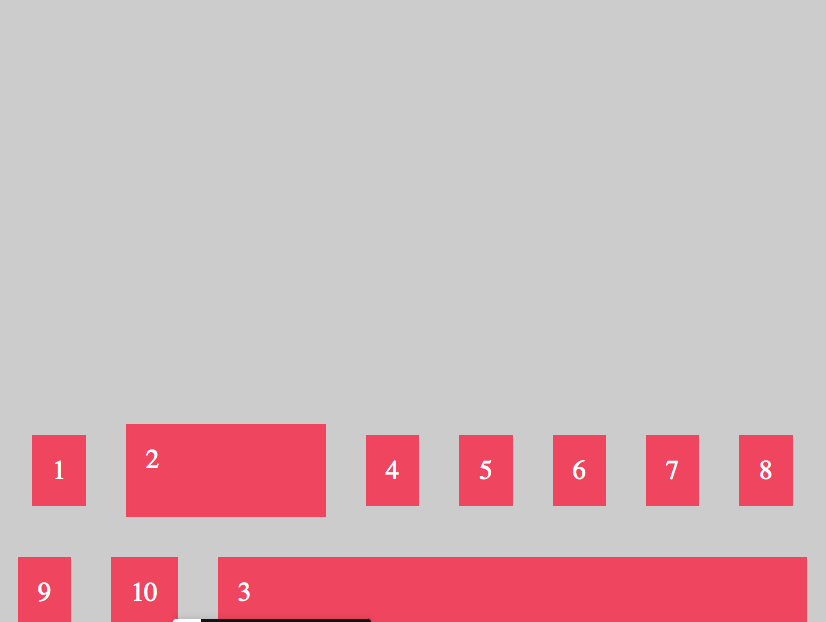
Align Content in Container

To align all rows or columns in Container you can use align-content.

.container{
  display:flex;
  flex-direction: row;
  justify-content: center; 
  align-items: center;
  
  //flex-start, center, space-between, space-around
  align-content: flex-end;
 
  background-color: #ccc;
  padding: 10px;
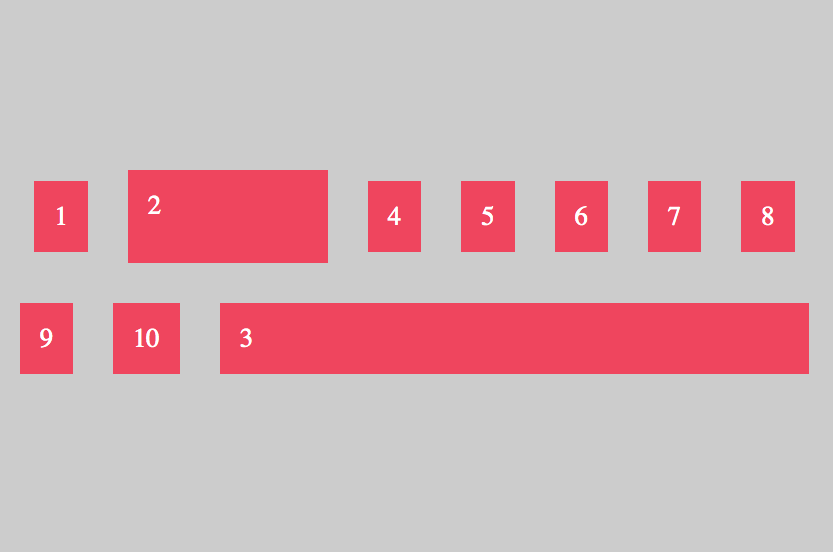
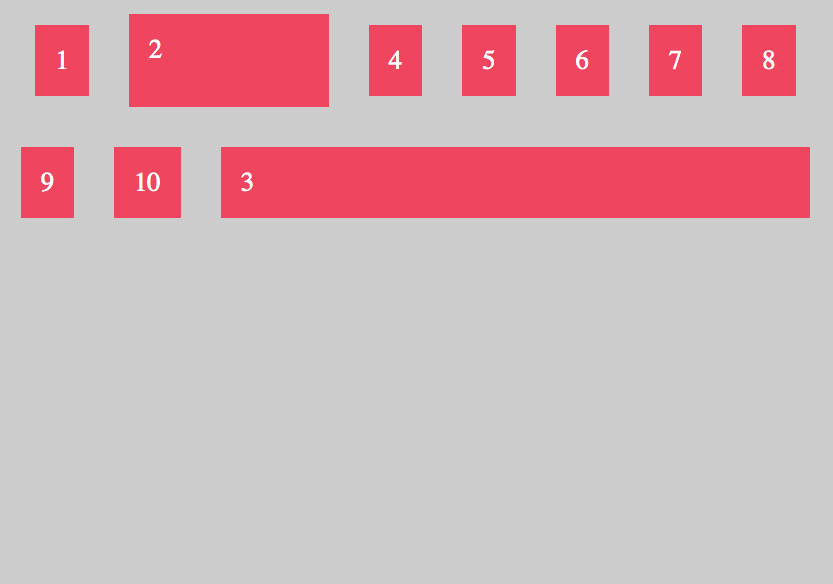
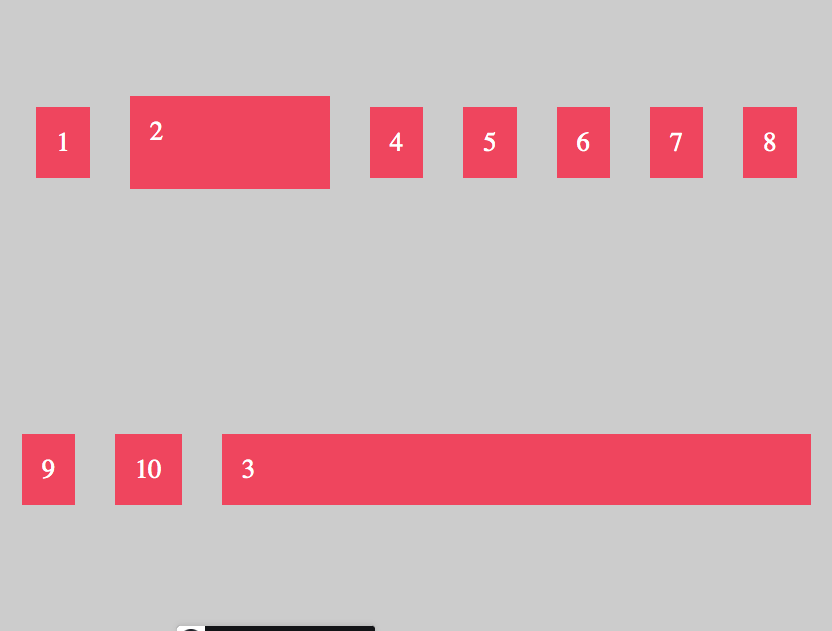
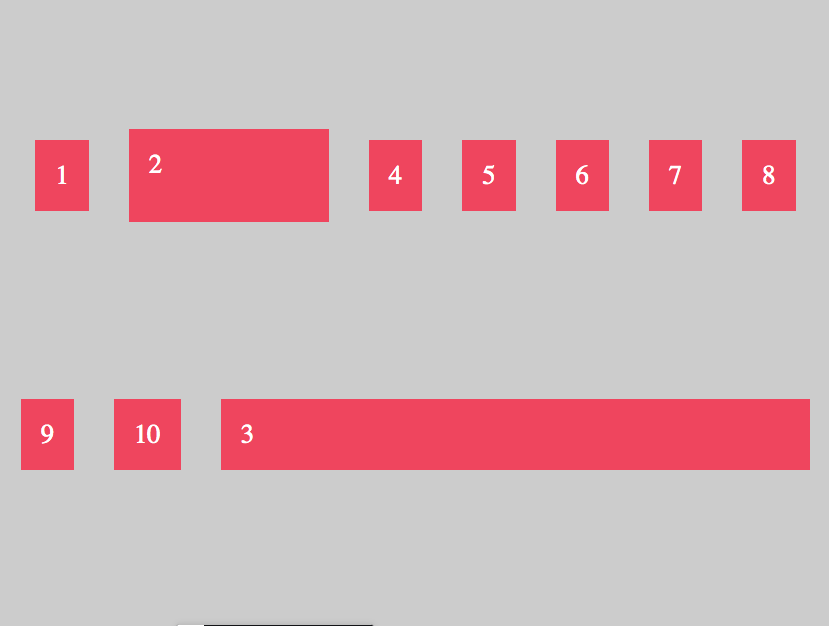
  flex-wrap:wrap;
  height: 1000px;
}
align-content: flex-end;
align-content: center;
align-content: flex-start;
align-content: space-around;
align-content: space-evenly